
Introduction to Microsoft Word

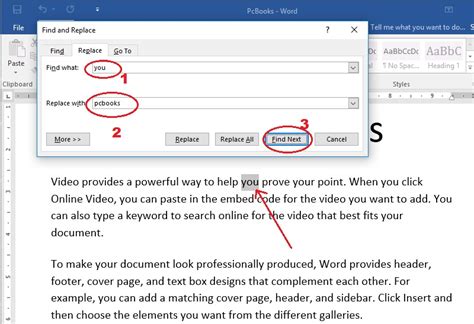
Microsoft Word is a powerful word processing program that offers a wide range of tools and features to help users create, edit, and format documents. One of the most useful features in Microsoft Word is the ability to replace words and phrases with ease. In this article, we will explore the different ways to replace words in Microsoft Word, including using the built-in Find and Replace tool, macros, and add-ins.
Using the Find and Replace Tool
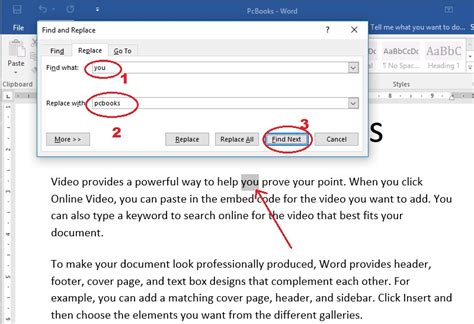
The Find and Replace tool in Microsoft Word is a powerful feature that allows users to search for and replace specific words or phrases in a document. To access the Find and Replace tool, follow these steps: * Open your document in Microsoft Word * Click on the Home tab in the ribbon * Click on the Find button in the Editing group * Select Replace from the drop-down menu * In the Find and Replace dialog box, enter the word or phrase you want to find in the Find what field * Enter the replacement word or phrase in the Replace with field * Click on the Replace All button to replace all instances of the word or phrase
📝 Note: You can also use the shortcut key Ctrl + H to open the Find and Replace dialog box.
Using Wildcards in the Find and Replace Tool

Microsoft Word also allows users to use wildcards in the Find and Replace tool to search for words or phrases that match a specific pattern. To use wildcards, follow these steps: * Open the Find and Replace dialog box * Click on the Use wildcards checkbox * Enter the wildcard characters in the Find what field * For example, to search for all words that start with the letter “a”, enter a* in the Find what field
Using Macros to Replace Words

Macros are a powerful tool in Microsoft Word that allow users to automate repetitive tasks, including replacing words and phrases. To create a macro to replace words, follow these steps: * Open the Visual Basic Editor by pressing Alt + F11 or by navigating to Developer > Visual Basic in the ribbon * In the Visual Basic Editor, click on Insert > Module to insert a new module * Enter the macro code to replace the words or phrases * For example, to replace all instances of the word “old” with “new”, enter the following code: Sub ReplaceWords() Selection.Find.Text = “old” Selection.Find.Replacement.Text = “new” Selection.Find.Execute Replace:=wdReplaceAll End Sub
Using Add-ins to Replace Words

Add-ins are software programs that can be installed in Microsoft Word to extend its functionality. There are several add-ins available that can help users replace words and phrases, including AutoCorrect and Smart Lookup. To install an add-in, follow these steps: * Navigate to the File tab in the ribbon * Click on Options * Click on Add-ins * Click on Go * Select the add-in you want to install and click OK
| Add-in | Description |
|---|---|
| AutoCorrect | Automatically corrects spelling and grammar errors |
| Smart Lookup | Provides definitions and information on selected words or phrases |

In summary, replacing words in Microsoft Word can be done using the built-in Find and Replace tool, macros, or add-ins. By following the steps outlined in this article, users can easily replace words and phrases in their documents.
What is the shortcut key to open the Find and Replace dialog box?
+
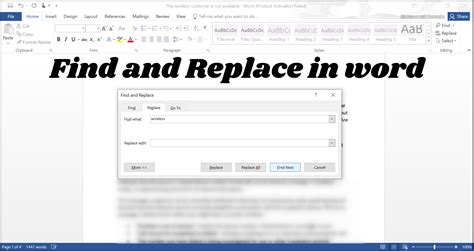
The shortcut key to open the Find and Replace dialog box is Ctrl + H.
How do I use wildcards in the Find and Replace tool?
+
To use wildcards in the Find and Replace tool, click on the Use wildcards checkbox and enter the wildcard characters in the Find what field.
What is the purpose of macros in Microsoft Word?

+
Macros are a powerful tool in Microsoft Word that allow users to automate repetitive tasks, including replacing words and phrases.