
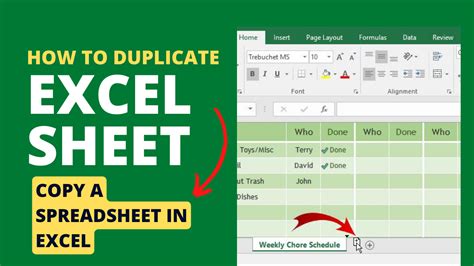
Duplicating Excel Sheets with Ease

When working with Microsoft Excel, there are often instances where you need to create a copy of an existing sheet. This could be for various reasons such as creating a backup, making modifications without altering the original data, or simply to use the existing format for a new set of data. Fortunately, Excel provides several straightforward methods to duplicate a sheet, making it easier to manage and organize your worksheets.
Method 1: Using the Drag and Drop Feature

One of the quickest ways to duplicate a sheet in Excel is by using the drag and drop feature. This method allows you to create a copy of your sheet while also giving you the flexibility to place the new sheet wherever you prefer within your workbook. Here’s how you can do it: - Hold down the Ctrl key. - Click on the sheet tab you want to duplicate. - Drag the sheet tab to the location where you want the duplicate sheet to be placed. - Release the mouse button. You will see that Excel automatically creates a copy of the sheet, appending “(2)” to the original sheet name to differentiate it.
Method 2: Using the Right-Click Menu

Another convenient method to duplicate a sheet involves using the right-click menu. This approach is particularly useful if you prefer using context menus for actions. Here’s how you can duplicate a sheet using the right-click menu: - Right-click on the sheet tab you want to duplicate. - From the context menu, select Move or Copy. - In the Move or Copy dialog box, check the box next to Create a copy. - Choose the location for your new sheet from the Before sheet list. - Click OK. Excel will then create a copy of the selected sheet and place it according to your specifications.
Method 3: Using the Excel Ribbon

For those who prefer navigating through Excel’s menus, duplicating a sheet can also be achieved through the Excel ribbon. This method provides an alternative approach for users who are more comfortable with using menu commands. Here’s how: - Select the sheet you want to duplicate by clicking on its tab. - Go to the Home tab in the Excel ribbon. - Click on Format in the Cells group. - Select Move or Copy Sheet from the drop-down menu. - In the Move or Copy dialog box, select the Create a copy checkbox. - Choose where you want to place the copy in the Before sheet list. - Click OK. This method also results in a duplicate of your selected sheet, placed according to your choice.
Organizing Your Duplicate Sheets

After duplicating a sheet, you might want to rename it to better reflect its contents or to differentiate it from the original. Renaming a sheet in Excel is straightforward: - Right-click on the sheet tab you want to rename. - Select Rename from the context menu. - Type in the new name for your sheet and press Enter. It’s also a good practice to review the contents of the duplicate sheet, especially if it contains formulas or references that might need adjustment after duplication.
📝 Note: When duplicating sheets that contain external references or links to other workbooks, ensure that these links are updated correctly in the duplicate sheet to avoid any errors or broken links.
Common Uses for Duplicate Sheets

Duplicating sheets in Excel serves a variety of purposes, including but not limited to: - Data Backup: Creating a duplicate of a sheet can serve as a quick backup in case the original data is accidentally modified or deleted. - Template Creation: If you have a sheet formatted in a specific way that you use repeatedly, duplicating it can save time by providing a ready-to-use template. - Scenario Planning: Duplicate sheets can be used to create different scenarios or versions of data, allowing for easier comparison and analysis.
| Method | Description |
|---|---|
| Drag and Drop | Hold Ctrl, click the sheet tab, drag to the desired location, and release. |
| Right-Click Menu | Right-click the sheet tab, select Move or Copy, check Create a copy, and choose the location. |
| Excel Ribbon | Select the sheet, go to Home > Format > Move or Copy Sheet, check Create a copy, and choose the location. |
In summary, duplicating Excel sheets is a versatile tool that can be utilized in various scenarios to enhance productivity and data management. Whether you prefer the drag and drop method, the right-click menu, or navigating through the Excel ribbon, there’s a convenient way for you to create copies of your sheets. By mastering these techniques, you can work more efficiently in Excel and make the most out of your spreadsheet applications.
As you explore the capabilities of Excel further, you’ll discover that the ability to duplicate sheets is just one of the many features designed to make data management and analysis more accessible. By combining this skill with other Excel functions, you can achieve complex tasks with ease, making Excel an indispensable tool for both personal and professional use.
What is the quickest way to duplicate a sheet in Excel?

+
The quickest way to duplicate a sheet is by using the drag and drop feature while holding down the Ctrl key.
Can I duplicate a sheet using the Excel ribbon?

+
Yes, you can duplicate a sheet by going to the Home tab, clicking on Format in the Cells group, and then selecting Move or Copy Sheet.
Why should I rename a duplicated sheet?

+
Rename a duplicated sheet to better reflect its contents and to avoid confusion with the original sheet.