
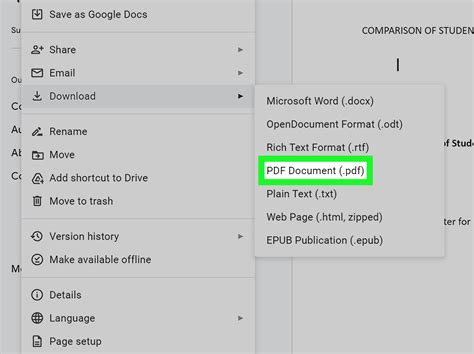
Introduction to Word to PDF Conversion

Converting Word documents to PDF format has become a common practice due to the versatility and security that PDFs offer. Portable Document Format (PDF) retains the layout, formatting, and content of the original document, making it ideal for sharing and archiving. This guide will walk you through the easiest methods to convert Word to PDF, ensuring that your documents are preserved in their original form and easily accessible across different platforms.
Why Convert Word to PDF?

Before diving into the conversion methods, it’s essential to understand the benefits of converting Word documents to PDF: - Security: PDFs are more secure than Word documents as they are less susceptible to editing and tampering. - Compatibility: PDFs can be opened on any device with a PDF reader, regardless of the operating system or software used to create the document. - Layout Preservation: PDFs maintain the original layout, formatting, and graphics of the document, ensuring that it looks the same on all devices.
Methods to Convert Word to PDF

There are several ways to convert Word documents to PDF, ranging from built-in Microsoft Word features to online conversion tools and third-party software. Here are some of the most straightforward methods:
Using Microsoft Word

- Open your Word document.
- Click on File > Save As.
- Choose the location where you want to save your PDF.
- In the Save as type dropdown, select PDF (*.pdf).
- Click Save.
Using Online Conversion Tools

- Visit an online Word to PDF conversion website.
- Upload your Word document or enter its URL.
- Choose the conversion settings if available.
- Click on the Convert button and wait for the process to complete.
- Download your PDF file.
Using Third-Party Software

- Download and install a PDF converter software.
- Open the software and select the Word document you want to convert.
- Adjust settings such as layout, security, and compression if necessary.
- Start the conversion process.
- Save the converted PDF to your desired location.
Choosing the Right Method
The choice of method depends on your specific needs, such as the number of documents to convert, the need for additional features like editing or security options, and whether you prefer online tools for convenience or software for more control.
Key Features to Consider in a Word to PDF Converter

When selecting a method or tool for converting Word to PDF, consider the following key features: - Conversion Quality: The ability to retain the original document’s layout and formatting. - Security Options: Features like password protection and encryption to secure your PDFs. - Batch Conversion: The capability to convert multiple documents at once for efficiency. - Compatibility: The tool’s ability to work with different versions of Word and PDF standards.
| Method | Conversion Quality | Security Options | Batch Conversion | Compatibility |
|---|---|---|---|---|
| Microsoft Word | High | Basic | No | Good |
| Online Tools | Varying | Varies | Some | Good |
| Third-Party Software | High | Advanced | Yes | Excellent |

📝 Note: The choice of method should be based on your specific needs, including the level of security required, the need for batch processing, and the importance of retaining the original document's layout and formatting.
In conclusion, converting Word documents to PDF is a straightforward process that can be accomplished through various methods, each with its own set of benefits and considerations. By understanding the reasons behind converting to PDF and choosing the right tool or method, you can ensure that your documents are securely preserved and easily accessible to anyone, anywhere.
What is the most secure way to convert Word to PDF?

+
Using third-party software with advanced security options such as encryption and password protection is often considered the most secure method.
Can I convert multiple Word documents to PDF at once?

+
Yes, some online tools and third-party software offer batch conversion capabilities, allowing you to convert multiple documents simultaneously.
Do all methods preserve the original document’s layout and formatting?

+
Most methods aim to preserve the layout and formatting, but the quality of conversion can vary, especially with online tools. Microsoft Word and high-quality third-party software generally offer the best results.