
Introduction to Unlocking Excel Cells

Microsoft Excel is a powerful tool used for data analysis, budgeting, and more. One of its key features is the ability to lock cells to prevent accidental changes or to secure sensitive information. However, there are situations where you might need to unlock these cells. Whether you’re working on a shared spreadsheet or inherited a protected workbook, knowing how to unlock Excel cells is crucial. In this article, we’ll explore five ways to unlock Excel cells, ensuring you have the flexibility you need when working with spreadsheets.
Understanding Locked Cells in Excel

Before diving into the methods to unlock cells, it’s essential to understand why cells are locked in the first place. Cells can be locked to prevent users from modifying their contents. This is particularly useful in shared workbooks where certain data should remain unchanged. By default, all cells in an Excel worksheet are locked, but this lock only takes effect when the worksheet is protected.
Method 1: Unlocking Cells Without Protecting the Worksheet

If your worksheet isn’t protected, unlocking cells is straightforward. You simply need to select the cells you want to unlock, go to the Home tab, find the Cells group, and click on “Format.” From the drop-down menu, select “Lock Cell” or press Ctrl + 1 to toggle the lock status. However, this method doesn’t directly apply if your worksheet is protected.
Method 2: Unlocking Cells in a Protected Worksheet

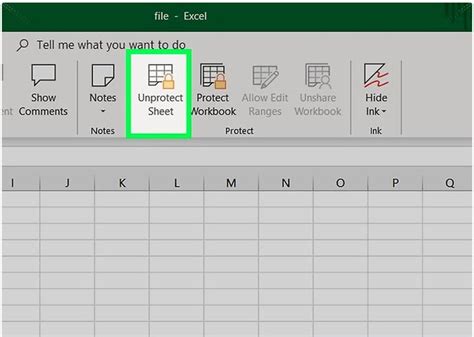
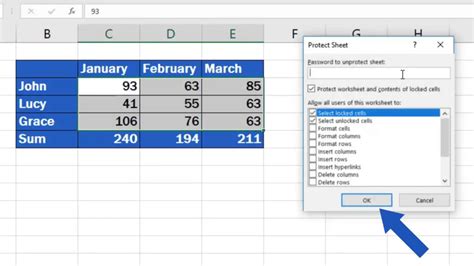
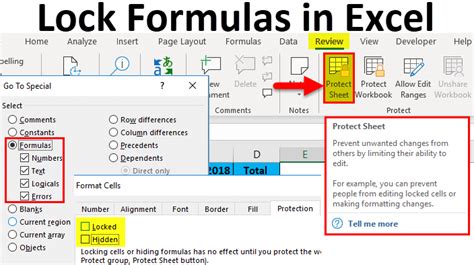
To unlock cells in a protected worksheet, you’ll first need to unprotect the sheet. Here’s how: - Go to the Review tab. - Click on “Unprotect Sheet” or “Unprotect Workbook” depending on your needs. - If prompted, enter the password used to protect the sheet. Once the sheet is unprotected, you can select the cells you wish to unlock, right-click, and select “Format cells.” In the Format Cells dialog box, under the Protection tab, uncheck “Locked” and then click OK. After making your changes, you can reprotect the sheet if necessary.
Method 3: Using Excel VBA to Unlock Cells

For those comfortable with Visual Basic for Applications (VBA), you can unlock cells programmatically. This can be particularly useful for unlocking multiple cells across different sheets in a workbook. Here’s a basic example of how to do it:
Sub UnlockCells()
    Dim ws As Worksheet
    Set ws = ThisWorkbook.Sheets("YourSheetName")
    ws.Unprotect "YourPassword"
    ws.Cells.Locked = False
    ws.Protect "YourPassword"
End Sub
Replace "YourSheetName" with the name of your sheet and "YourPassword" with the actual password used to protect the sheet.
Method 4: Using an Add-in or Third-Party Tool
There are several Excel add-ins and third-party tools available that can help you unlock Excel cells, especially in situations where the password is forgotten. These tools can automatically unlock cells or even remove worksheet protection without requiring the password. However, use these tools with caution, especially on workbooks containing sensitive information.
Method 5: Manually Changing Protection Settings for Specific Cells

Sometimes, you might only need to unlock specific cells rather than the entire sheet. After unprotecting the sheet using the method described in Method 2, you can: - Select the specific cells you want to unlock. - Right-click and choose “Format cells.” - In the Format Cells dialog, under the Protection tab, uncheck “Locked.” - Click OK to apply the changes. - You can then reprotect the sheet, and only the selected cells will be unlocked.
📝 Note: Always be cautious when unlocking cells, especially in shared workbooks, as it can lead to unintended changes by other users.
When working with Excel, flexibility is key. Unlocking cells can be necessary for a variety of reasons, from making edits to shared documents to overcoming forgotten passwords. By mastering these five methods, you’ll be better equipped to handle protected workbooks and worksheets, ensuring your work flows smoothly and efficiently.
To summarize, unlocking Excel cells can be achieved through various methods, ranging from simple cell formatting changes to using VBA scripts or third-party tools. Each method has its use case, depending on whether your worksheet is protected, if you have the password, or if you’re dealing with specific cells versus the entire sheet. Understanding and applying these methods will enhance your productivity and control over Excel documents.
What is the default state of cells in an Excel worksheet regarding locking?

+
All cells in an Excel worksheet are locked by default, but this lock only takes effect when the worksheet is protected.
How do I unlock cells in a protected Excel worksheet?
+
To unlock cells in a protected worksheet, you first need to unprotect the sheet by going to the Review tab, clicking on “Unprotect Sheet,” and entering the password if prompted. Then, select the cells you wish to unlock, right-click, select “Format cells,” and under the Protection tab, uncheck “Locked.”
Can I unlock Excel cells using VBA?

+
Yes, you can unlock Excel cells using Visual Basic for Applications (VBA). This involves writing a script that unprotects the sheet, changes the locked status of the cells, and then reprotects the sheet if necessary.